
Bones, slots and attachments
A rig has three layers: bones form the skeleton, slots sit on bones and set draw order and color, and each slot shows one attachment at a time: an image, a mesh or a shape. This page covers building them by hand. AutoRig builds the same things for you.
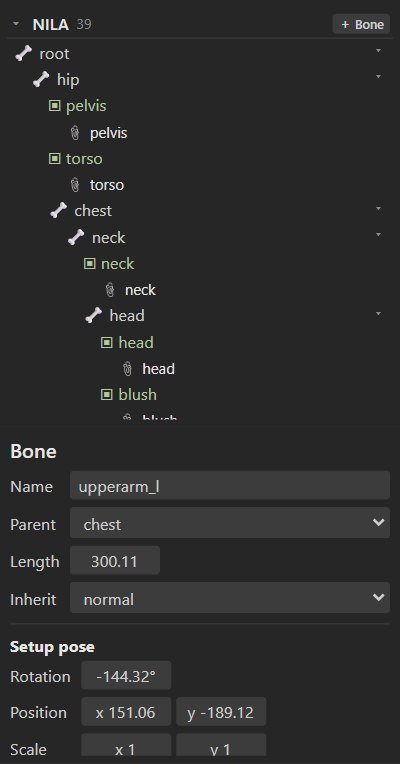
#Bones
#Creating bones
Bones are created in Setup mode:
- Pick the Create tool (N) and drag in the viewport: the bone starts where you press and points where you release. It becomes a child of the selected bone (the root when nothing is selected), and is selected itself, so the next drag continues the chain.
- + Bone in the tree adds a child to the selected bone.
Every project has a root bone at the origin. Delete removes the selected bone together
with its children.
#Bone settings
| Setting | Meaning |
|---|---|
| Name | Unique name. Animations and runtimes refer to bones by name. |
| Parent | The bone it hangs from. Changing it keeps the bone where it is in the world. |
| Length | Visual length, and the reach used by IK and some constraints. |
| Inherit | What it takes from its parent: normal (everything), onlyTranslation, noRotationOrReflection, noScale or noScaleOrReflection. Use noScale for parts that should not stretch when the parent does. |
| Setup pose / Pose at current frame | Position, rotation, scale and shear relative to the parent: the setup pose in Setup mode, the animated pose (with key buttons) in Animate mode. |
The viewport toolbar shows the same values for the active tool, in the Local, Parent or World axes.
#Slots
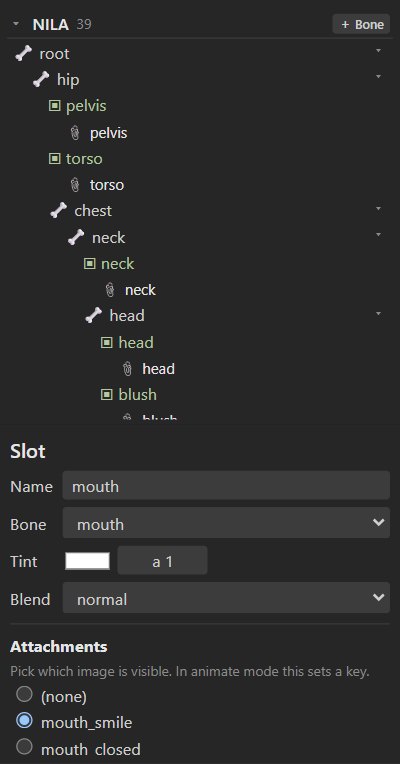
A slot is a place in the draw order on a bone. It shows one attachment at a time, so a slot called
mouth can hold mouth_smile, mouth_A, mouth_O and the others, and an animation swaps between
them.
| Setting | Meaning |
|---|---|
| Name | Unique name. |
| Bone | The bone it follows. Changing it keeps the images where they are. |
| Tint | A color and alpha multiplied into the attachment. Animatable as color keys. |
| Blend | normal, additive, multiply or screen. |
| Attachments | Which attachment is visible: pick one, or (none). In Animate mode this sets an image-swap key. |
#Draw order
Slots are drawn back to front in the Draw order section of the tree. Select a slot and use Draw in front or Draw behind. PSD imports keep the layer order. Draw order can also change during an animation (draw-order keys from imported files are kept and exported).
#Attachments
| Type | What it is | Create it with |
|---|---|---|
| Image (region) | A bitmap placed on the slot's bone. | Import, or + Add image to this slot… |
| Mesh | An image with vertices that can bend, bound to one or more bones with weights. | ▦ Convert to mesh on an image. See Meshes. |
| Linked mesh | Another image sharing a mesh's shape and weights (and optionally its deform keys). | + Linked mesh with image… on a mesh. |
| Bounding box | A polygon for hit testing in games. | + Add shape… ▸ Bounding box |
| Clipping | A polygon that masks the slots drawn after it, up to Clip until. | + Add shape… ▸ Clipping |
| Path | A curve other bones can follow with a path constraint. Options: Closed, Constant speed. | + Add shape… ▸ Path |
| Point | A position and rotation, for spawning effects or attaching items in a game. | + Add shape… ▸ Point |
#Placing images
Select an image's slot in Setup mode. Image placement shows its image, Position, Rotation, Scale and Size relative to the bone; Reset size goes back to the image's pixel size. You can also drag the image with the Translate, Rotate and Scale tools.
Note
Image placement is part of the setup pose. To move an image over time, animate its bone, or turn the image into a mesh and key its deformation.
#Editing shapes
For bounding boxes, clipping polygons and paths, ✎ Edit shape edits the vertices in the viewport: drag vertices, click near an edge to add one, and press Delete to remove the selected one. Path points have Bézier handles (Alt+drag moves one handle on its own). ✓ Done editing finishes.
#Image sequences
A mesh can play numbered images (flame01, flame02, …) one after another, for flipbook effects
such as fire, smoke and blinking lights. Tick Image sequence in Setup mode and set:
| Setting | Meaning |
|---|---|
| Frames | How many images. |
| Start | The number of the first image. |
| Digits | Zero padding of the numbers (2 gives 01, 02, …; 0 gives 1, 2, …). |
| Setup frame | The image shown in the setup pose. |
The panel shows the image names it expects and how many it found.
In Animate mode, the Sequence section keys how the sequence plays from the current frame on:
| Setting | Meaning |
|---|---|
| Mode | Hold (stay on Frame), Once, Loop, Ping-pong, and their reverse variants. |
| Frame | The image to show or start from. |
| Frame time | Seconds per image. |
#Renaming safely
Rename bones and slots in the inspector at any time: animations and constraints in the project keep working. Game code that refers to the old name must change too.