
Python scripting
Rigby2D runs Python scripts inside the editor. Use them to automate rigging and animation chores, or to build custom tools: functions that appear in the Scripts menu for you and your team.
Python is built in (CPython 3.14 on Pyodide, bundled with the editor), so there is nothing to install. Scripts work offline and on every platform, and run sandboxed: they can change the open project, but not your files or the network.
#Quick start
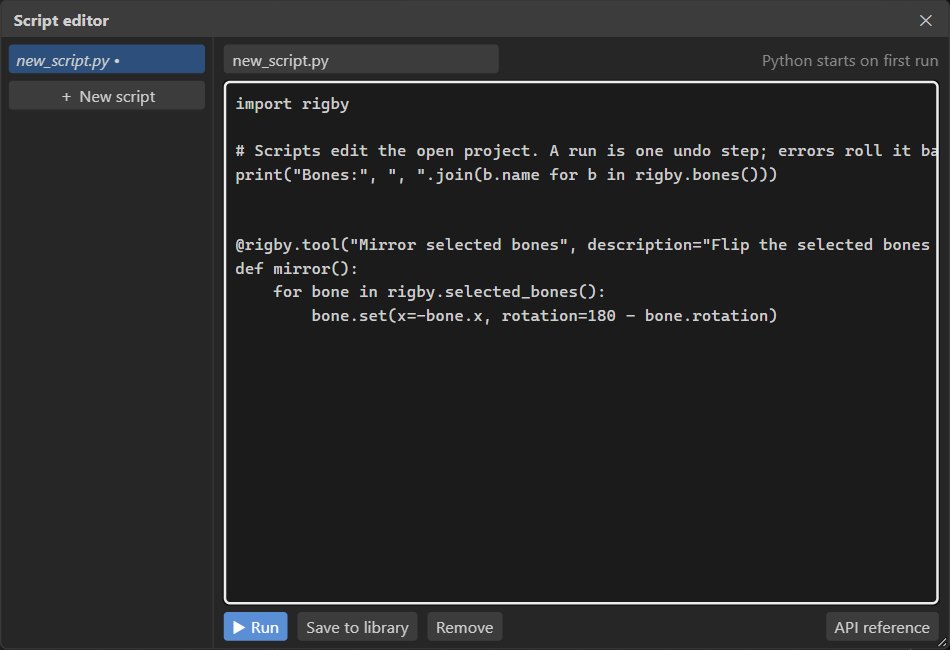
- Scripts ▸ Script editor… opens the script editor with an example.
- Press ▶ Run (Ctrl+Enter). Output from
printgoes to the log (View ▸ Log). - Press Save to library to keep the script: it loads every time the editor starts, and the tools it defines stay in the Scripts menu.
import rigby

@rigby.tool("Mirror selected bones", description="Flip the selected bones across X = 0")
def mirror():
    for bone in rigby.selected_bones():
bone.set(x=-bone.x, rotation=180 - bone.rotation)After you run or save this script, Scripts ▸ Mirror selected bones runs mirror().
#Scripts in files
Scripts ▸ Add script files (.py)… adds scripts from disk. In the desktop app the editor remembers where each file came from: edit it in your own code editor, then choose Scripts ▸ Reload scripts. In the browser version the script's text is stored with the editor instead.
#Undo, errors and the log
- A script run, or one run of a tool, is one undo step (Ctrl+Z puts everything back).
- If a script raises an exception, the project is left exactly as it was. The status bar shows the error, and the log shows the full traceback, trimmed to your script's own lines.
- The Log window (View ▸ Log, or the Log button at the right of the status bar) lists status messages, script output, warnings and errors, with tracebacks you can expand. Filter by level or text, and use Copy to paste entries into a bug report. The status bar button turns red and counts errors you have not seen yet.
Traceback (most recent call last):
  File "broken.py", line 6, in <module>
    find_leg()
  File "broken.py", line 4, in find_leg
    return rigby.bone("leg")
rigby.RigbyError: No bone 'leg'#API reference
Everything lives in the rigby module. Names refer to bones, slots and animations by name.
Angles are in degrees and times in seconds.
#Project
| Function | Returns |
|---|---|
rigby.info() | dict: path, workspace ('game' or 'film'), fps, mode, time, animation, skin |
rigby.fps() | Frame rate of the project |
rigby.mode() / rigby.set_mode('setup' | 'animate') | Editor mode |
rigby.time() / rigby.set_time(seconds) | Current time on the timeline |
#Bones
| Function | Returns |
|---|---|
rigby.bones() | All bones, parents before children |
rigby.bone(name) | A Bone (raises RigbyError if there is none) |
rigby.add_bone(name, parent='root', x=0, y=0, rotation=0, length=0) | The new Bone |
rigby.selected_bones() | The bones selected in the editor |
rigby.select(*bones) | Selects bones (names or Bones) |
A Bone has these setup pose fields, relative to its parent. Reading one gives the current
value, and setting one changes the setup pose:
x, y, rotation, scale_x, scale_y, shear_x, shear_y, length, name
| Member | |
|---|---|
bone.set(**fields) | Sets several fields at once: bone.set(x=10, rotation=45) |
bone.parent, bone.children | Neighbouring bones (None for the root's parent) |
bone.world | World transform in the pose shown: dict with x, y, rotation, scale_x, scale_y |
bone.key(channel, value, time=None, animation=None, curve='linear') | Sets a key (see below) |
bone.keys(channel, animation=None) | The keys of a channel: [{'time', 'value', 'curve'}] |
bone.delete_key(channel, time=None, animation=None) | Deletes a key; True if there was one |
#Keys
Channels are 'rotate', 'translate', 'scale' and 'shear'. Key values are relative to
the setup pose, as in the editor:
rotate: degrees added to the setup rotation, for examplebone.key('rotate', 30).translate,shear:(x, y)added to the setup values.scale:(x, y)factors multiplying the setup scale.
time defaults to the current time, and animation to the animation open in the editor. Curves:
'linear', 'stepped', 'ease_in', 'ease_out' and 'ease_in_out'. Setting a key after the
end of an animation makes the animation longer.
#Slots
| Member | |
|---|---|
rigby.slots(), rigby.slot(name) | Slots, in draw order |
slot.bone | The slot's Bone |
slot.attachments | Names of its attachments |
slot.attachment | The attachment shown in the setup pose (settable; None shows nothing) |
slot.color | (r, g, b, a), values from 0 to 1 (settable) |
#Animations
| Member | |
|---|---|
rigby.animations(), rigby.animation(name) | Animations |
rigby.add_animation(name, duration=0) | The new Animation |
rigby.current_animation() | The animation open in the editor, or None |
anim.duration | Length in seconds (settable) |
anim.key(bone, channel, time, value, curve='linear') | Sets a key in this animation |
anim.open() | Shows this animation in the editor |
#Output and tools
| Function | |
|---|---|
print(...) | Writes to the log (stderr writes warnings) |
rigby.log(...), rigby.warn(...), rigby.error(...) | Log entries at that level |
rigby.status(text) | Shows a message in the status bar |
@rigby.tool(label, description='') | Adds the decorated function (no arguments) to the Scripts menu; the description is its tooltip |
rigby.RigbyError | Raised when the editor cannot do a request (unknown name, invalid value) |
#Example: a breathing cycle
import rigby

@rigby.tool("Add breathing", description="Keys a 2-second chest scale loop on 'chest'")
def breathing():
    anim = rigby.current_animation() or rigby.add_animation("breathe", 2)
    chest = rigby.bone("chest")
    for t, s in [(0, 1.0), (1, 1.04), (2, 1.0)]:
        chest.key("scale", (s, s), time=t, animation=anim.name, curve="ease_in_out")
rigby.status(f"Breathing keyed on {anim.name}")#Limits
- Scripts can use the Python standard library. Packages from PyPI are not available yet.
- Tools take no arguments. Read the selection or the current time to decide what to act on.
- Scripts edit bones, slots, animations and bone keys. Meshes, constraints, skins and events are not in the API yet.
- Scripts run on the editor's main thread, so a long loop pauses the editor until it finishes.