
AI assistants (MCP)
Rigby2D includes a Model Context Protocol (MCP) server, so AI
assistants such as Claude can inspect, validate, sample, edit and convert Rigby2D projects:
.rigby work files and skeleton .json / .skel exports. They can also set up film output,
build pose libraries and face controls, add audio and lip-sync, and run Python scripts.
It uses the same runtime as the editor and games (src/core) and runs on Node.js 20 or newer. A
clone of the repository is enough for every tool except run_script (Pyodide) and reading PSD
files (ag-psd): run npm install once in the Rigby2D folder to use them.
#Setup
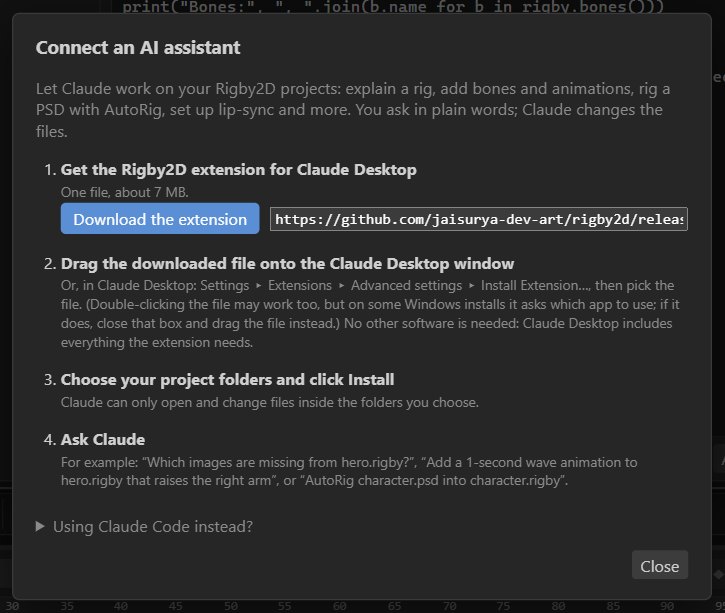
Claude Desktop, the easy way (Windows, macOS): the Rigby2D extension is one file.
- Download Rigby2D-AI.mcpb (about 7 MB; also on every release).
- Drag it onto the Claude Desktop window, or in Claude Desktop open Settings ▸ Extensions ▸ Advanced settings ▸ Install Extension… and pick it. Double-clicking may work too, but on some Windows installs (for example Claude from the Microsoft Store) Windows asks which app to use: close that box and drag the file instead.
- Choose your project folders and click Install.
No Node.js, terminal or settings file is needed: Claude Desktop includes the runtime. The extension holds the whole server, Python scripting and PSD support. To change the folders later, open the extension's settings in Claude Desktop. The editor shows these steps in Help ▸ Connect an AI assistant.
Other setups. The server speaks MCP over stdio. Point your client at src/mcp/server.js and give
it the folders it may access (--root <dir>, or just the folder; repeatable; default: the folder the
client starts it in).
Claude Code
claude mcp add rigby2d -- node /path/to/rigby2d/src/mcp/server.js --root /path/to/your/projectsOther clients that use an mcpServers configuration file (or Claude Desktop without the extension):
{
  "mcpServers": {
    "rigby2d": {
      "command": "node",
      "args": ["/path/to/rigby2d/src/mcp/server.js", "--root", "/path/to/your/projects"]
    }
  }
}On Windows, use full paths such as C:\\Users\\you\\rigby2d\\src\\mcp\\server.js (backslashes
doubled in JSON).
Run node src/mcp/server.js --help to check the installation. Start the server with node, not
through npm run: npm prints to standard output, which the protocol uses.
#Tools
This section explains the tools by task. The MCP tool reference lists every tool with all of its parameters, generated from the server itself.
#Reading and conversion
| Tool | What it does | Changes files |
|---|---|---|
inspect_project | Format and version, counts of bones, slots, skins, constraints, events and images, the animations with durations, read warnings. | No |
describe_rig | Bone hierarchy with setup-pose transforms, slots in draw order with their attachments, extra skins. | No |
describe_animation | Key times of every bone, slot, deform, IK and draw-order timeline of one animation, its events, attachment swaps. | No |
sample_pose | Evaluates the setup pose or an animation at a time with the runtime: world transforms of every bone, visible attachments, draw order, events so far, bounds. | No |
validate_project | Structure, images missing from the work file, atlas or images folder, animations without keys, whether skeleton JSON 4.3 round-trips the data, whether binary .skel export is possible. | No |
convert_project | Writes skeleton JSON (3.8, 4.2 or 4.3) or binary .skel (4.3) from a .rigby, .json or .skel file. | Yes |
#Editing
| Tool | What it does |
|---|---|
add_bone | Adds a bone under an existing bone, with its setup pose relative to the parent. |
set_bone_setup | Changes a bone's setup pose (x, y, rotation, scale, shear, length); only the given fields. |
add_animation | Adds an empty animation. |
set_bone_key | Sets a rotate, translate, scale or shear key at a time, with a curve to the next key: linear, stepped, easeIn, easeOut, easeInOut, or a custom cubic bezier [cx1, cy1, cx2, cy2] (as in CSS cubic-bezier(); cx1 and cx2 within 0..1). Replaces a key at the same time. |
delete_bone_key | Deletes a bone key at a time. |
set_attachment_key | Shows an attachment of a slot from a time on (image swap), or hides it. |
set_event_key | Fires an event at a time, creating the event definition if needed. Replaces the same event at the same time. |
batch_edit | Applies many of the edits above in one call: operations is a list of { op, ...that tool's arguments } (without path), run in order. The project is loaded once and saved once, atomically: if any operation fails, nothing is saved and the error names the operation. Use it to build animations: 40 keys take about 15 ms instead of 0.6 s as separate calls. |
Key values are relative to the setup pose, as in the editor and the file formats: rotate, translate and shear values are added to it, scale values multiply it. An animation's duration grows to include new keys.
For many edits at once (an animation with dozens of keys), use batch_edit:
{
  "path": "hero.rigby",
  "operations": [
    { "op": "add_animation", "name": "nod" },
    { "op": "set_bone_key", "animation": "nod", "bone": "head", "channel": "rotate", "time": 0, "value": 0, "curve": [0.25, 0.1, 0.25, 1] },
    { "op": "set_bone_key", "animation": "nod", "bone": "head", "channel": "rotate", "time": 0.5, "value": -15, "curve": "easeInOut" }
  ]
}Each editing call loads the file, applies one change, checks the result and saves it in the same
format: a .rigby work file keeps its images byte for byte and gains no fields it did not have
(older work files without output settings stay that way until you change them), skeleton JSON keeps
its format version (3.8, 4.2 or 4.3) and .skel stays binary 4.3. Saving is atomic (a temporary file is renamed over
the target). Pass output to save a copy instead of changing the input; an existing output is
only replaced with overwrite: true. To undo, keep a copy or use output: the tools do not keep
history. After editing, sample_pose and validate_project check the result; the Rigby2D editor
opens the edited .rigby file as usual.
#Film, poses and audio (.rigby work files)
These features live only in .rigby work files; skeleton exports have no place for them. To use
them on an export, open it in the editor and save it as a .rigby file. inspect_project lists
them under film.
| Tool | What it does |
|---|---|
set_workspace | Switches the project between the game and film workspaces (which tools the editor shows). |
set_output | Film output: frame rate, size, background (transparent or #rrggbb), framing (auto, fixed with center and scale, or camera, which follows a bone named camera and creates it if needed). |
save_pose | Saves a pose to the pose library: bone transforms and the attachments their slots show, from the setup pose or an animation at a time. |
apply_pose | Applies a pose at an amount (0 to 1): to the setup pose, or as keys in an animation at a time. |
delete_pose | Deletes a pose and the face controls that use it. |
add_face_control | Adds a face control that blends from the setup pose (or a pose) to a pose. |
set_face_control | Sets a face control's value: in the setup pose, or as keys at a time. |
delete_face_control | Deletes a face control. |
add_audio_track | Stores a sound file (WAV, MP3, OGG, M4A, AAC, FLAC) in the work file as an audio track of an animation, with start time and volume. |
set_audio_track | Changes a track's start time or volume. |
remove_audio_track | Removes a track, and its sound file when nothing else uses it. |
lip_sync | Lip-syncs an animation to an audio track: with text (the words spoken) or timing_file (ElevenLabs timestamps, Whisper or word-timing JSON, Rhubarb, Papagayo) keys mouth shapes (visemes) on a mouth slot; otherwise keys a face control from loudness. Reading the audio needs a WAV track; a timing file does not. |
Times can be given in seconds (time) or as a frame at the project's frame rate.
#Structure
| Tool | What it does |
|---|---|
rename_bone | Renames a bone; poses follow. |
rename_animation | Renames an animation; its audio tracks follow. |
delete_animation | Deletes an animation and its audio tracks. |
set_slot | Sets a slot's setup attachment (or hides it) and color. |
#AutoRig and retargeting
| Tool | What it does |
|---|---|
detect_parts | Previews AutoRig on a PSD (psd_file) or an unrigged .rigby (path): each layer's body part, its side, and whether that came from the name or the position. Read-only. |
autorig | Rigs layered artwork: bones, joints where parts meet, weighted meshes for parts that bend, and IK for arms and legs. From psd_file, it writes a new .rigby to output. roles and sides correct the detection, meshes is deforming, all or none, and ik turns IK on or off. |
map_bones | Previews how bones of a source character match a target (path): by name, similar name, body part, or your mapping. Read-only. |
retarget_animation | Copies one animation (animation) or several (animations) from source to the target. Movement is scaled to the target's size (or scale); mode is relative or world. Curves are kept, and slot, event and IK keys follow by name. |
Reading PSD files needs npm install. See the AutoRig and retargeting guide.
#Python scripts
run_script runs a Python script against a project with the same rigby module as the editor's
script editor (see the scripting guide), then saves the project. It covers what
the other tools do not, in one call:
{
  "path": "hero.rigby",
  "selection": ["arm_l", "arm_r"],
  "script": "import rigby
for b in rigby.selected_bones():
    b.rotation += 10
print('done')"
}print()output comes back inoutput.- If the script raises an exception, nothing is saved, and the error comes back with the script's traceback.
dry_run: trueruns it without saving, for questions such as "which bones have no keys?".animationandtimeset what the script sees as the open animation and the current time (Animate mode).selectionsets the selected bones.- Scripts run in a sandbox: CPython 3.14 on Pyodide, standard library only, no file or network access. The first call starts Python, which takes about 2 seconds.
#Not available through MCP
Rendering PNG sequences, WebM and MP4 uses the editor's GPU drawing and video encoders: use File ▸ Render animation in the editor.
#Conventions
Coordinates are in skeleton units with Y up; angles are in degrees. Results are returned both as structured content and as JSON text.
#Notes
- Images: for a skeleton export,
validate_projectchecks the images against<name>.atlasnext to it, or else against the.atlasfile in that folder that holds the most of the skeleton's images, or else against its images folder. For a.rigbyfile it checks the images stored inside it. - Round trip: the check allows the rounding skeleton files use (5 decimals), compares bezier curves by kind (files store rounded absolute control points) and ignores format bookkeeping that is not rig data.
- Conversion writes skeleton data only. The texture atlas is not repacked: keep using the
existing
.atlasand page images, or export from the Rigby2D editor..rigbywork files are written by the editor, which holds the images. An existing output file is only replaced withoverwrite: true.
#Security
- Every path is resolved inside the
--rootfolders. Symbolic links are followed before the check, so links cannot lead outside them. Relative paths resolve against the first root. - Only
convert_project, the editing tools andrun_scriptwrite: the project file they are given, or theoutputfile.add_audio_trackandrun_script(script_file) read files inside the roots. The tools never delete files and make no network requests. Scripts run sandboxed, without access to files or the network. - Tool annotations tell clients which tools are read-only (
readOnlyHint) and which change files (destructiveHint), so clients can ask for confirmation before edits.
#Protocol
- Transport: stdio, one JSON-RPC 2.0 message per line. Logs go to standard error.
- Protocol revisions:
2025-06-18,2025-03-26and2024-11-05(the client's choice when supported, otherwise the newest). - Capabilities:
tools. Requests:initialize,ping,tools/list,tools/call. - Invalid tool arguments and tool failures come back as tool results with
isError: trueand a message the model can act on; unknown tools and methods are JSON-RPC errors.
The implementation is in src/mcp/ (protocol.js: protocol handling and transport; tools.js:
reading, validation and conversion; edits.js: editing; film.js: film, poses and audio;
rigging.js: AutoRig and retargeting; scripting.js: Python scripts; server.js: command line)
and is covered by test/mcp.test.js, test/mcpfilm.test.js and test/mcprig.test.js.
#Building the extension
npm run build:mcpb packs the Claude Desktop extension (mcpb/build.mjs): it follows the server's
imports to collect exactly the files it uses, adds Pyodide and ag-psd, writes manifest.json (with
the tool list and a "Project folders" setting), validates it with Anthropic's mcpb tool and writes
dist-mcpb/Rigby2D-AI-<version>.mcpb, plus a copy named Rigby2D-AI.mcpb for the "latest" link.
Releases attach both.