
Importing art
Rigby2D animates bitmap artwork. Draw your character in any paint program, in separate pieces that can move on their own, and bring the pieces in as a layered PSD or as PNG files.
#Preparing artwork
- One piece per moving part. A head, a torso, an upper arm, a forearm, a hand. Parts that bend (a torso, a sleeve, a tail) can be one piece that becomes a mesh.
- Overlap the joints. Draw a little extra where parts meet (the top of a forearm under the sleeve), so no gap opens when the joint rotates.
- Draw alternates as separate layers. Open and closed eyes, mouth shapes, hand poses. They become extra attachments of the same slot, swapped during animation.
- Name the layers after the body part and side, such as
upperarm_lorHand Right. AutoRig reads the names; see naming layers. - Draw at the size you need. Images are used at their pixel size. Big films can use big art; for games, keep the atlas small.
#Importing a PSD
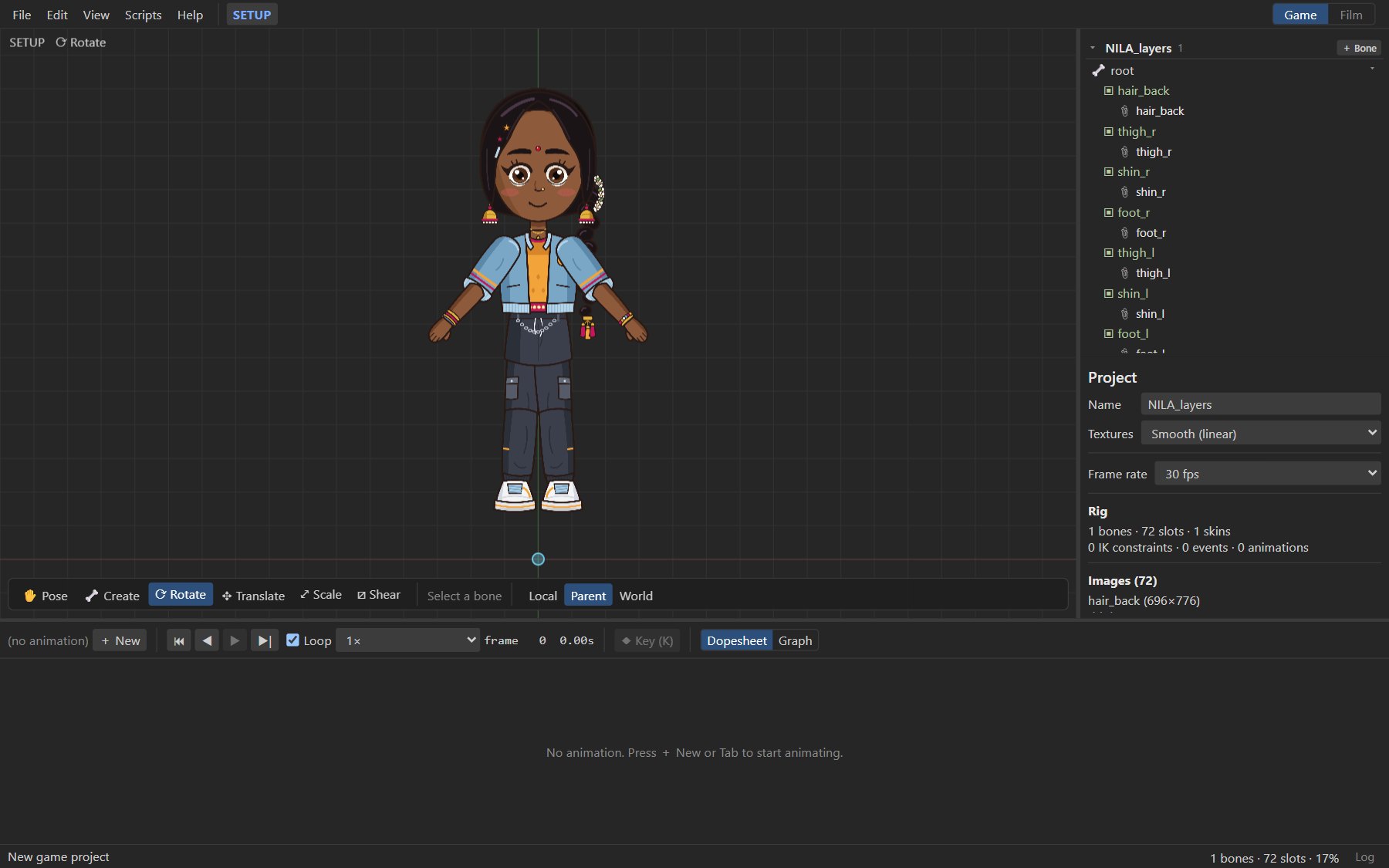
File ▸ Import PSD… imports every pixel layer:
- Each layer becomes an image in its own slot on the root bone, exactly where it sits in the canvas.
- The canvas's bottom center becomes the origin of the world, so a character drawn standing on the canvas bottom stands on the ground line.
- Layer order becomes draw order (the bottom layer is drawn first, at the back).
- Groups are flattened into their layers. Hidden layers (or layers in hidden groups) are imported but not shown.
- Layer opacity is baked into the image.
- If the project is still untitled, it takes the PSD's file name.
Next: rig it in one step with AutoRig, or by hand with bones.
#Importing PNG images
File ▸ Import PNG images… adds one or more PNG files as images on the selected bone (the root when nothing is selected), side by side above it. Move them into place with the Translate tool in Setup mode.
To add an image to an existing slot, for example a new mouth shape, select the slot and use + Add image to this slot… in the inspector. See Attachments.
#Texture filtering and pixel art
Select nothing to see the Project panel. Its Textures setting decides how images are drawn when scaled:
| Setting | Use it for | Effect |
|---|---|---|
| Smooth (linear) | Painted and vector-style art | Smooth scaling. Exported atlases use filter: Linear, Linear. |
| Pixel art (nearest) | Pixel art | Every pixel stays sharp in the viewport, in renders and in games: exported atlases use filter: Nearest, Nearest, which the runtimes follow. |
Opening a skeleton export picks the setting up from its atlas.
#Images in the project
The Images section of the tree and the Project panel list every image with its size. Images are
stored inside the .rigby work file, so a project is one self-contained file. Exports pack the
images that are actually used into one atlas page; see Export.