
Quick start
This walk-through takes a layered character from a PSD to a looping animation and an export a game can load. It takes about ten minutes. You need a PSD with one layer per body part (head, torso, upper arm, forearm, hand, thigh, shin, foot, and so on). No PSD at hand? Open a demo instead (File ▸ Open demo) and skip to step 4.
Tip
Prefer to learn by doing inside the editor? Help ▸ Tutorials has hands-on lessons that point at each button and move on as you work. The first one starts with a 4-minute tour.
#1. Import the artwork
Open the editor and choose File ▸ Import PSD…. Every pixel layer becomes an image in its own slot, exactly where it was drawn. Hidden layers are imported hidden.
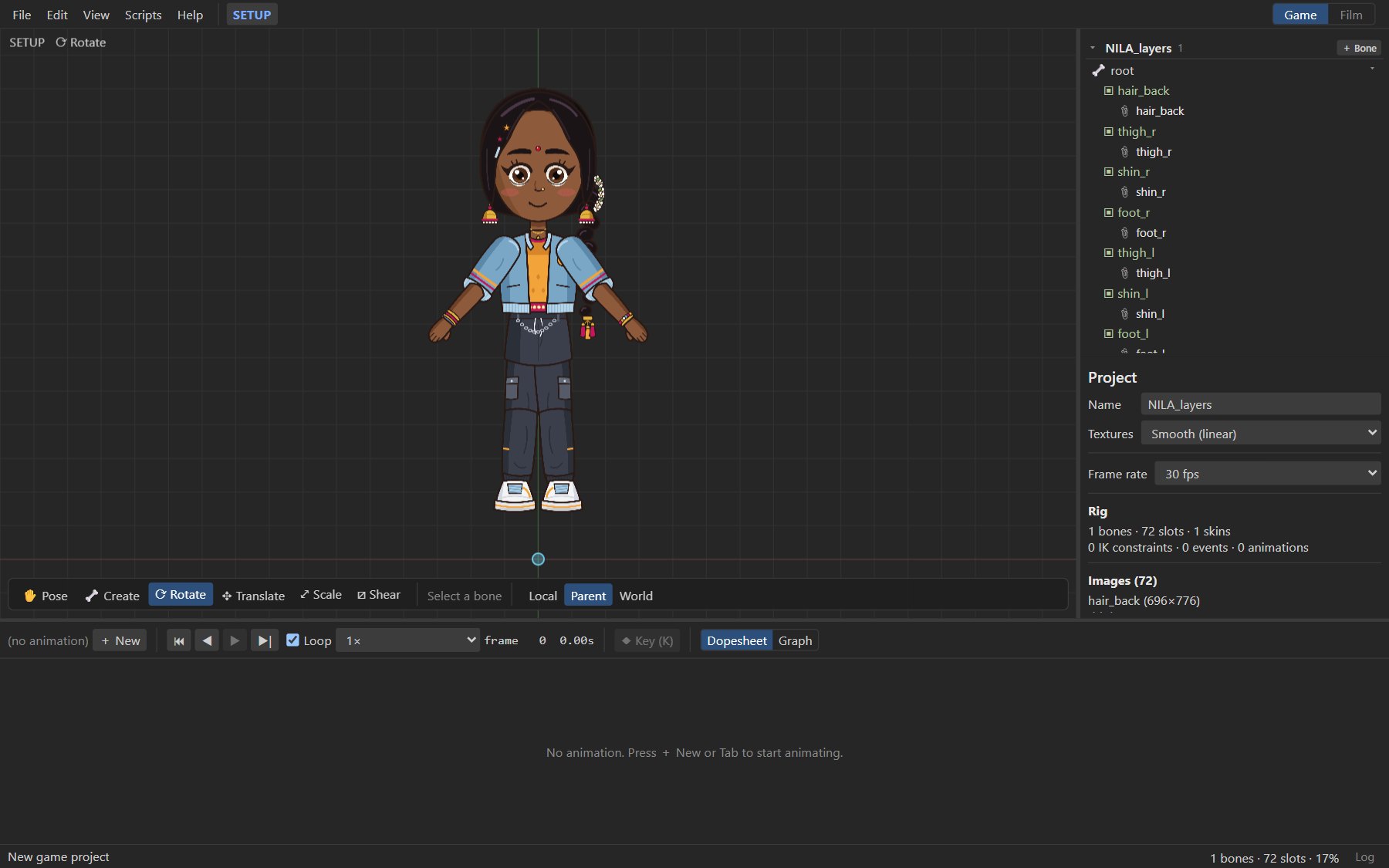
Layer names matter for the next step. upperarm_l, L Upper Arm and arm.left.upper all work; see
naming layers.
#2. Rig it with AutoRig
Choose File ▸ AutoRig artwork…. The dialog lists each layer with the part and side AutoRig found for it. Fix any that are wrong, or choose leave unrigged, then press Generate rig.
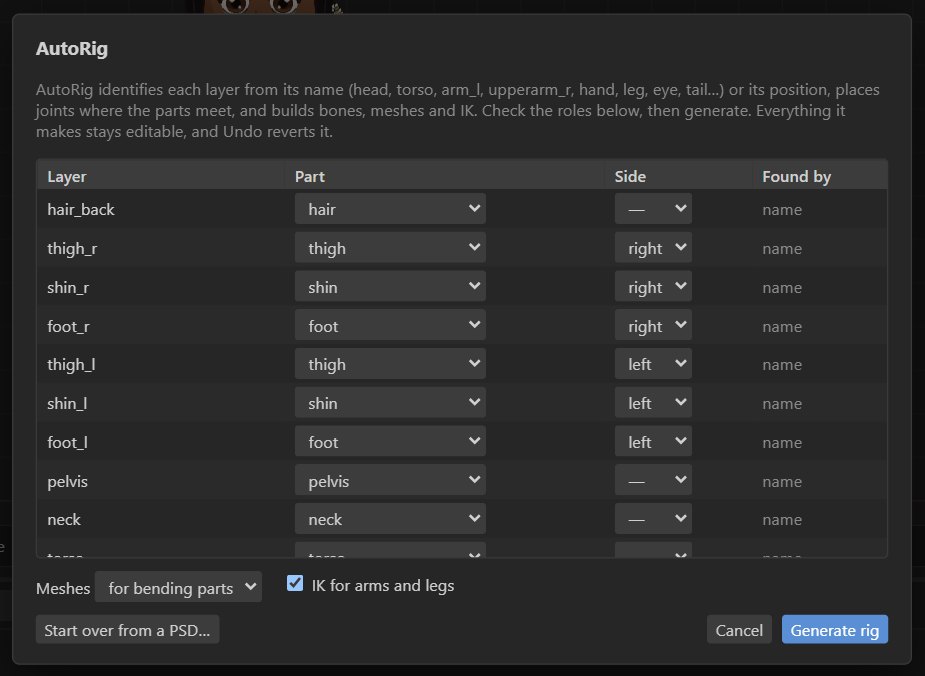
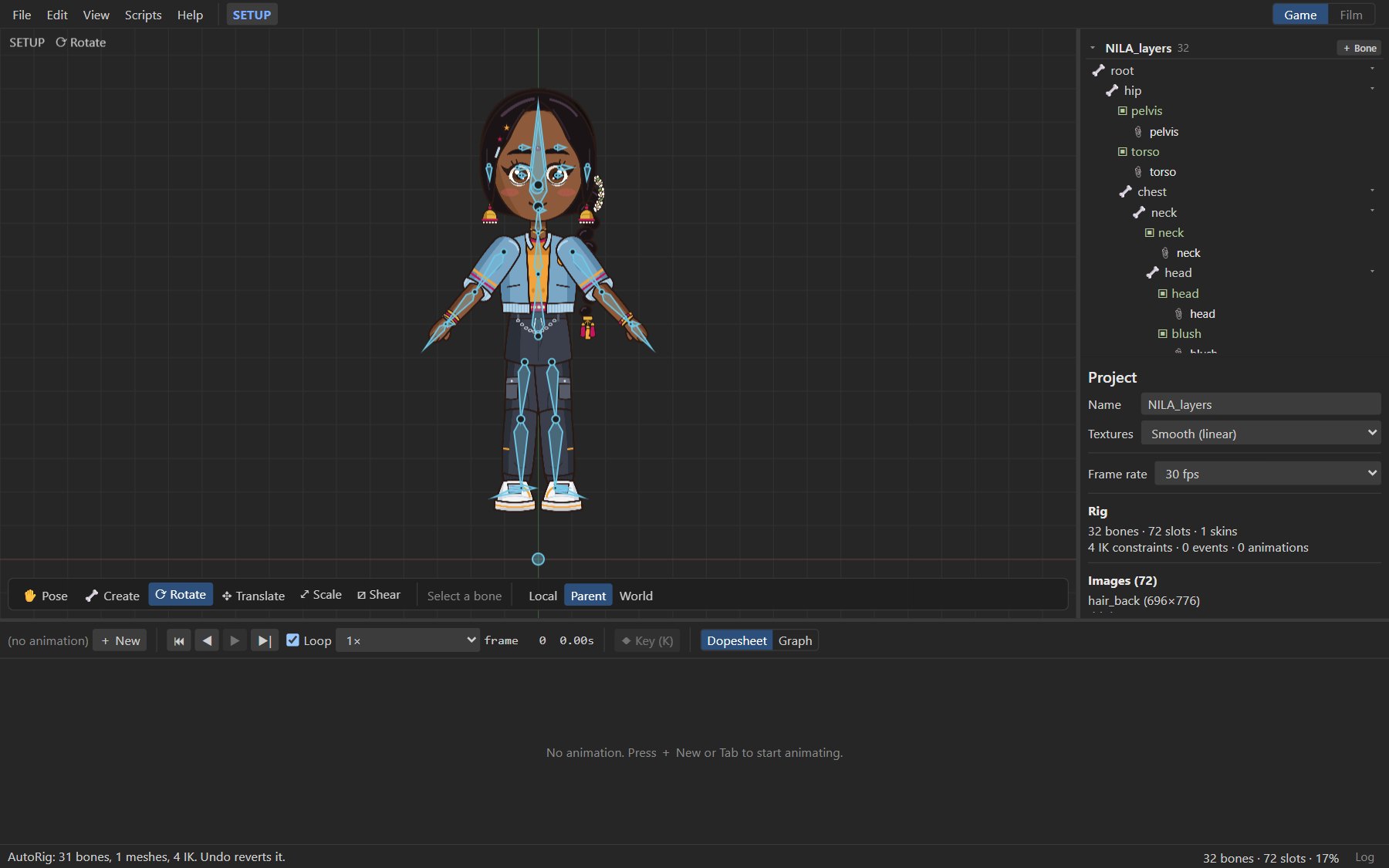
AutoRig builds a spine, neck and head, arms and legs with IK targets, small face bones, and turns bending parts (a torso, a one-piece arm) into weighted meshes. It is one undo step, and everything it makes is ordinary rig data you can edit.
#3. Check the rig
Select Rotate in the viewport toolbar (or press C) and drag a bone: its children and their images follow. Things to look at:
- Does the head turn at the neck, and do the arms bend at the elbows?
- Do the images sit in the right draw order? Select a slot in the tree and use Draw in front / Draw behind.
- Want the knee to bend the other way? Select the leg's IK constraint in the tree and flip Bend.
Undo (Ctrl+Z) puts back anything you did not mean to change. You are still in Setup mode, so these edits change the rig's rest pose.
#4. Make an animation
- Press Tab to switch to Animate mode. The viewport gets a red border.
- In the timeline, press + New and name the animation
idle. - Set its Length to
2seconds. - At frame 0, select the
chestbone, rotate it a little and press K to key the change. A diamond appears in the dopesheet. - Move the time cursor to frame 30 (click the ruler, or press R and F to step), rotate the chest the other way and press K again.
- Go to the last frame and key the chest back to where it started, so the loop is seamless.
- Press Space to play. Press it again to stop.

Tip
Turn on Auto key in the viewport toolbar and every change sets keys right away, without pressing K.
Smooth the motion with easing: right-click a key and choose Ease in-out, or open the Graph view to shape the curve with Bézier handles. See Graph editor.
#5. Save and export
- File ▸ Save (Ctrl+S) writes
name.rigby: the whole project with its images in one file. Reopen it any time with File ▸ Open. - File ▸ Export JSON + atlas… (Ctrl+E) writes
name.json,name.atlasandname.pngfor a game. Export .skel + atlas writes the compact binary format instead.
Then play it in your game, or switch to the Film workspace and render a video.
#Next steps
- The interface: every panel, mode and tool.
- Bones, slots and attachments: rigging by hand.
- Poses and face controls: expressions and mouth shapes.
- Lip-sync: make the character talk from an audio file.