
The interface
The editor is one window with five areas around the viewport. Panels can be resized by dragging the borders between them, and in the desktop app the Timeline, Tree and Inspector can be popped out into their own windows.
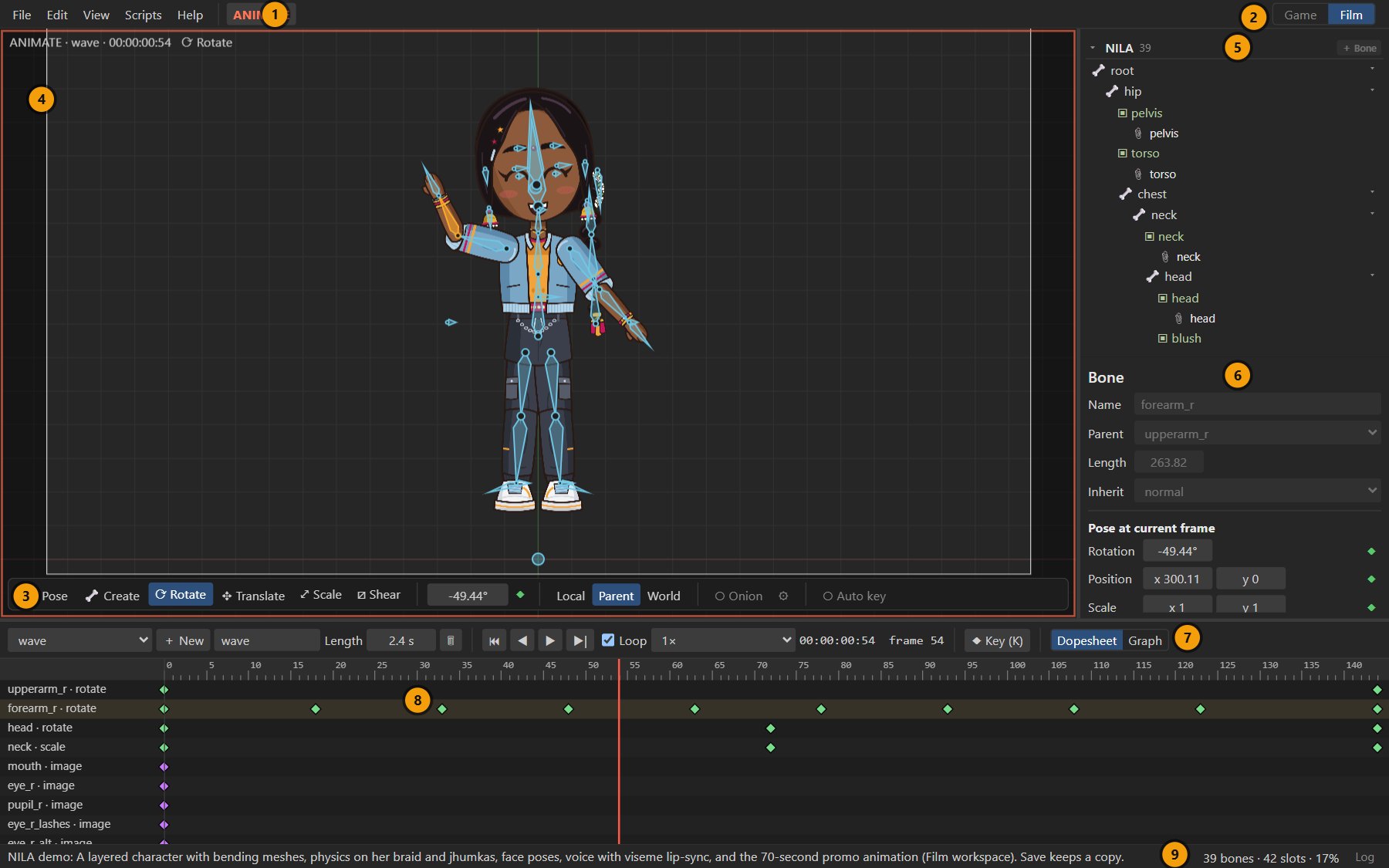
| Area | What it is for | |
|---|---|---|
| 1 | Menu bar | File, Edit, View, Scripts and Help, and the SETUP / ANIMATE mode button. |
| 2 | Workspace switch | Game or Film: which tools are shown. See Workspaces. |
| 3 | Viewport toolbar | Transform tools, the active tool's values with a key button, axes, onion skin and auto key. |
| 4 | Viewport | The character. Select, pose and edit here. |
| 5 | Tree | The skeleton (bones, slots, attachments) and the draw order, skins, constraints, events, animations and images. |
| 6 | Inspector | Properties of the selection: a bone, slot, constraint, skin or event, or the project when nothing is selected. Poses and face controls sit at the bottom. |
| 7 | Timeline controls | Animation list, + New, length, playback, loop, speed, the time display and Key. |
| 8 | Dopesheet / Graph | Keys over time, or their curves. |
| 9 | Status bar | Messages, rig statistics and zoom, and the Log button. |
#Modes: Setup and Animate
Every edit means one of two things, chosen by the mode:
| Setup mode | Animate mode | |
|---|---|---|
| Changes | The setup pose: the rig at rest. | Keys at the current frame of the current animation. |
| Bones | Create, delete, reparent, set length. | Pose them. |
| Images and meshes | Place them, edit vertices, paint weights. | Swap images, deform meshes (deform keys). |
| Viewport border | None | Red |
Switch with Tab or the mode button in the menu bar. The same transform tools work in both modes; only the result differs.
#Viewport
| To | Do |
|---|---|
| Select a bone or image | Click it. |
| Add to or remove from the selection | Ctrl+click. |
| Box select | Drag in empty space (with Ctrl held, adds to the selection). |
| Transform the selection | Drag it with the active tool, or drag empty space while bones are selected. |
| Pan | Right or middle drag. |
| Zoom | Mouse wheel. |
| Fit the skeleton in view | View ▸ Fit the skeleton in view (Ctrl+Shift+F). |
| Deselect | Esc, or click empty space. |
#Tools
| Tool | Key | Does |
|---|---|---|
| Pose | B | Drag a bone to aim it at the cursor; drag near its origin to move it. The quickest way to pose. |
| Create | N | Drag to draw a bone (Setup mode). Select a bone first to chain the new one from it. |
| Rotate | C | Rotates the selection. |
| Translate | V | Moves the selection. |
| Scale | X | Scales the selection. |
| Shear | Z | Shears the selection. |
Keys are those of the default Reference preset; a Blender-like preset is under View. See Keyboard shortcuts.
Next to the tools, the active tool's values for the selected bone can be dragged or typed. In Animate mode a ◆ button keys them; its color says whether the value is keyed at this frame, changed but not keyed, or not keyed.
Axes: Local, Parent and World decide the space the values are shown in and the direction the Translate tool moves.
#View options
The View menu has Show bones, Show output frame (Film workspace), the Log window, Window layouts (desktop app), zoom commands, the renderer (Draw with WebGL or Canvas 2D) and the shortcut presets.
#Tree
The tree has collapsible sections:
- Skeleton: bones in their hierarchy, each with its slots and their attachments. Click a slot's attachment to show it (in Animate mode, that sets an image-swap key). + Bone adds a child to the selected bone.
- Draw order: slots back to front; Draw in front and Draw behind move the selected slot.
- Skins, Constraints and Events: with + buttons to create them. See Skins and events and Constraints.
- Animations and Images.
Bones also have an onion-skin button that limits onion skinning to that bone and its children. See Onion skin.
#Inspector
The inspector shows what is selected:
- Nothing: the Project: name, texture filtering (smooth or pixel art), frame rate, the Output section in the Film workspace, rig statistics, images and audio tracks.
- A bone: name, parent, length, inheritance, and its pose at the current frame.
- A slot: its attachments, color and blending, and the selected attachment's settings.
- A constraint, skin or event: every setting of it.
At the bottom, Poses & face controls is always there. See Poses and face controls.
#Timeline
The timeline row holds the animation menu, + New, the animation's name and Length, a delete button, playback (start, previous frame, play, next frame), Loop, playback speed, the time (frames and seconds, or timecode in the Film workspace) and ◆ Key. Dopesheet and Graph switch the view below. See Animating and Graph editor.
#Workspaces
| Game | Film | |
|---|---|---|
| For | Game engines and apps | Film, video, motion graphics |
| Output | Skeleton JSON / .skel + atlas | PNG sequences, WebM, MP4 (exports stay available) |
| New projects | 30 fps | 24 fps |
| Time display | Frames and seconds | Timecode HH:MM:SS:FF and frames |
| Output settings, output frame, Render animation | Hidden | Shown |
| Audio tracks, lip-sync, face controls | Hidden | Shown |
The workspace is saved in the .rigby file. Switching is always safe: film settings, poses and face
controls never reach skeleton exports.
#Log
View ▸ Log (or Log at the right of the status bar) lists status messages, script output, warnings and errors with expandable tracebacks. Filter by level or text, and Copy entries for a bug report. The status bar button turns red and counts errors you have not seen yet.
#Detached panels and window layouts
In the desktop app, the Timeline, Tree and Inspector can each be popped out into a window of its own, for example on a second monitor. Everything stays in sync with the main window.
View ▸ Window layouts saves where the panels sit as a named layout:
- Save current layout… stores which panels are popped out and where.
- Manage layouts… renames, updates and deletes layouts, and binds a shortcut (Ctrl+Alt+1 to 9) that recalls a layout from any Rigby2D window.