
Meshes
A mesh is an image with vertices. Meshes bend: bind one to several bones and each vertex follows them by its weights, so a sleeve bends at the elbow, a torso twists and a tail curls. In Animate mode, you can also move vertices directly and key the shape (deform keys).
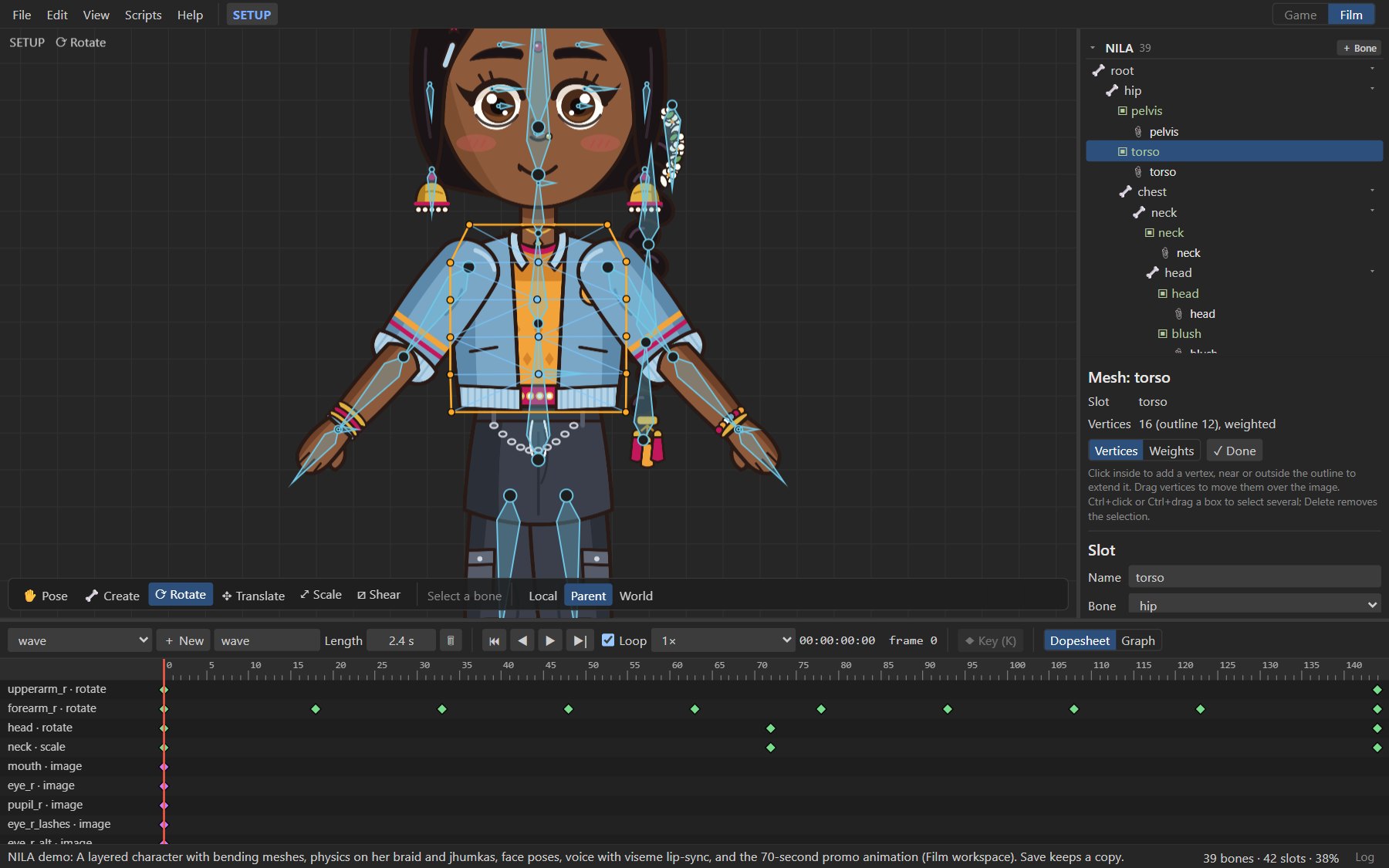
#Turning an image into a mesh
- In Setup mode, select the image's slot.
- Press ▦ Convert to mesh in the inspector. The image is replaced by a mesh with four vertices at its corners, and mesh editing starts.
- Click to add vertices: around the visible shape of the image to outline it, and inside where it should bend. ✎ Edit mesh edits it again later.
AutoRig makes meshes for bending parts by itself.
#Editing vertices
With Vertices selected in the mesh panel:
| To | Do |
|---|---|
| Add a vertex inside | Click inside the mesh. |
| Extend the outline | Click near or outside the outline. |
| Move vertices | Drag them over the image. |
| Select several | Ctrl+click, or Ctrl+drag a box. |
| Delete | Select and press Delete. |
The mesh panel shows the vertex count (outline and inner) and whether it is weighted. Rigby2D triangulates the mesh for you. Put vertices where the image should bend: rows across a joint bend smoothly, and few vertices elsewhere keep the mesh light.
✓ Done finishes editing.
#Weights
A weighted mesh follows several bones. Each vertex has a weight per bone, and the weights of a vertex add up to 1.
- Select the bones the mesh should follow: Ctrl+click them in the tree.
- Press Bind to N selected bones. Each vertex is weighted to the nearest of those bones.
- Switch to Weights to refine them by painting.
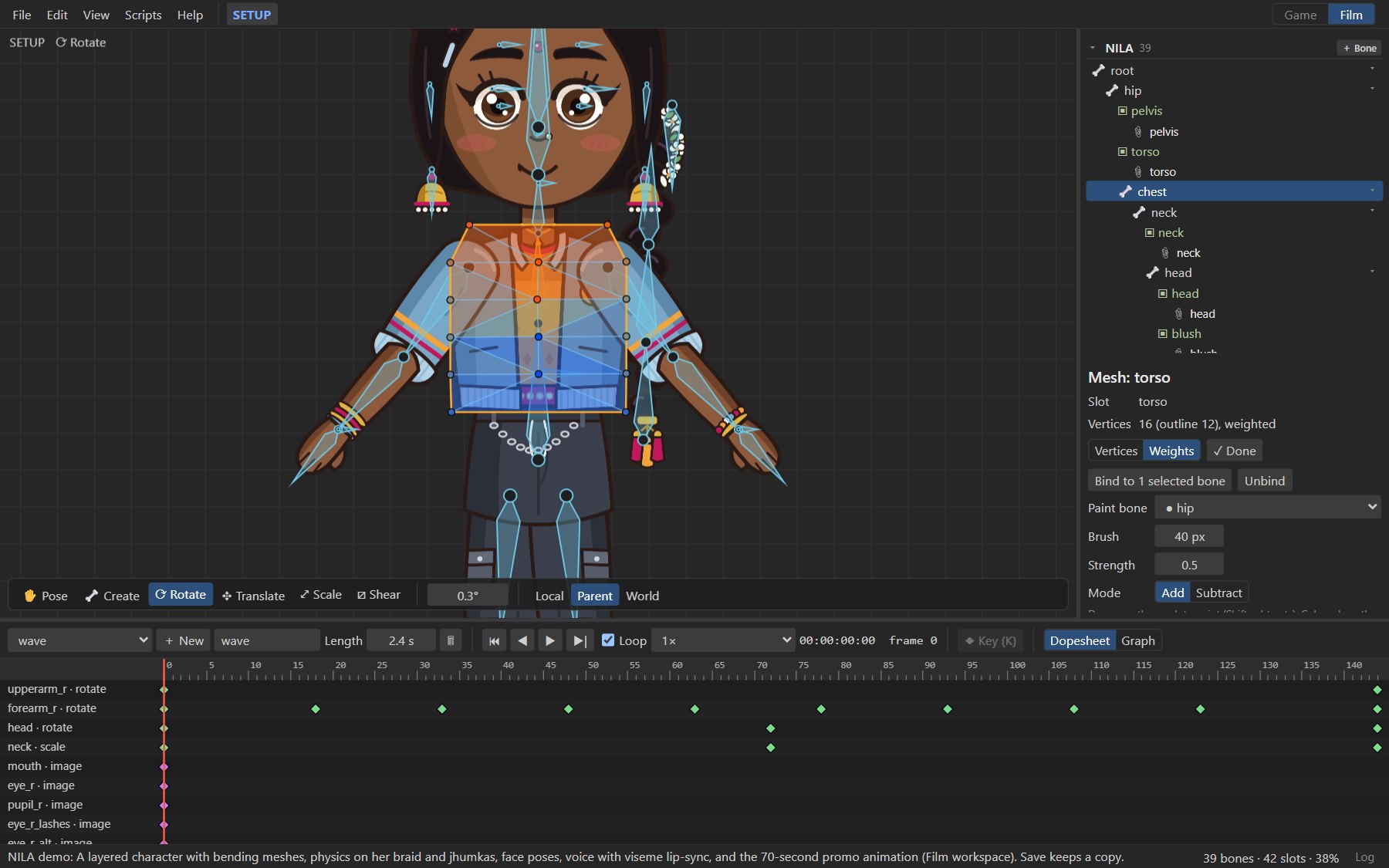
| Setting | Meaning |
|---|---|
| Paint bone | The bone you are painting weight for. ● marks bones the mesh uses. |
| Brush | Brush radius in pixels. |
| Strength | How much one stroke changes the weight. |
| Mode | Add or Subtract (hold Shift to subtract while painting). |
Drag over the mesh to paint. Colors show the paint bone's weight: red is full weight, blue none. Unbind removes the weights; the mesh then follows its slot's bone only.
Tip
Check weights by rotating the bones in Animate mode, then undo. A crease at a joint means the weights change too suddenly across it: paint a softer blend over two or three rows of vertices.
#Deforming in Animate mode
In Animate mode, ✎ Deform mesh lets you move vertices over time:
- Drag vertices to key their positions at the current frame; drag a box (or Ctrl+click) to select several and move them together.
- Keys appear in the dopesheet as the slot's deform row.
Deform keys add to what the bones do, so you can squash a face for a blink, bulge a cheek or wobble a belly on top of the skeletal animation.
#Linked meshes
A linked mesh shows another image with the same vertices, triangles and weights as a mesh. Use it for alternate drawings of a bending part, such as a sleeve in another color for a different outfit.
On a mesh, choose an image in + Linked mesh with image…. Use the deform keys of the parent mesh decides whether it also follows the mesh's deform keys. Edit the parent mesh; the linked ones follow.
#Image sequences on meshes
Meshes can play numbered image sequences. See Image sequences.