
Skins and events
#Skins
A skin is a set of attachments that can be swapped as a whole: outfits, armor sets, color variants, or several characters sharing one skeleton and its animations. The same animation plays on every skin.
#How skins work
- The default skin holds every attachment that is not in a named skin. Attachments added while the default skin is active belong to every skin.
- A named skin adds attachments by slot and name. When a game shows skin
knight, a slot looking for its attachmenthelmetfinds the knight's helmet. - Animations refer to attachments by name, so an animation that swaps
handtohand_fistworks with every skin that has those names.
#Creating and filling a skin
- In the tree's Skins section, press + New. The new skin becomes active.
- Select a slot and add images or shapes (+ Add image to skin '…' in the inspector). They go into the active skin. Slots show skin attachments with the skin's name in brackets.
- Click a skin in the tree to make it active and see what it contains.
| Setting | Meaning |
|---|---|
| Name | The skin's name, as games refer to it. |
| Active | Which skin the editor shows. Make active switches. |
| Attachments | How many attachments it has; Attachments by slot lists them. |
| Bones | Bones marked "skin required" that this skin turns on (Use selected). |
| Constraints | Constraints marked "skin required" that this skin turns on. |
| Duplicate | A copy of the skin to make a variant from. |
#Skin bones and constraints
Some bones and constraints only make sense for some skins: a cape bone with physics for the knight, a tail for the cat. Mark them Skin required, then add them to the skins that use them. In other skins they do nothing.
#Skins when rendering
File ▸ Render animation lists the skins: tick several to render each animation with each skin in one batch. See Film.
#Events
An event is a named moment in an animation that a game reacts to: a footstep sound, a hit frame, a particle burst. Events carry optional values.
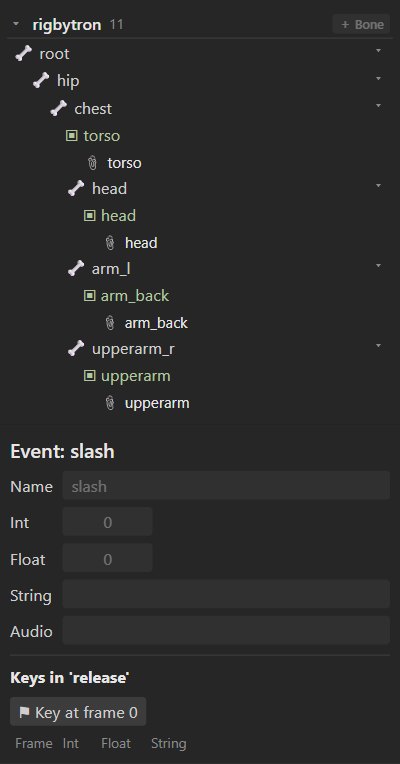
#Creating an event
In the tree's Events section, press +. Select it to set its default values:
| Setting | Meaning |
|---|---|
| Name | What the game listens for. |
| Int, Float, String | Values passed to the game. |
| Audio | The path of a sound to play. |
| Volume, Balance | How to play it (balance: −1 left to 1 right). |
#Keying events
Switch to Animate mode, choose the animation, go to the frame, select the event and press ⚑ Key at frame N. Each key can override the values above. Keys lists the event's keys in the current animation; Delete this key removes one. Event keys also appear in the dopesheet.
#In the runtimes
state.addListener({
  event: (entry, e) => {
    if (e.name === 'footstep') playSound(e.audio ?? 'step.wav', e.volume);
  },
});See Runtimes.