
Film workspace
Rigby2D makes animation for film, video and motion graphics as well as for games. The Film workspace gathers the tools for that: output resolution and frame rate, an animatable camera, audio tracks with lip-sync, face controls, and an offline renderer for PNG sequences, WebM with alpha and MP4. Switch to it with the Game | Film switch at the top right of the editor, or start with File ▸ New film project.
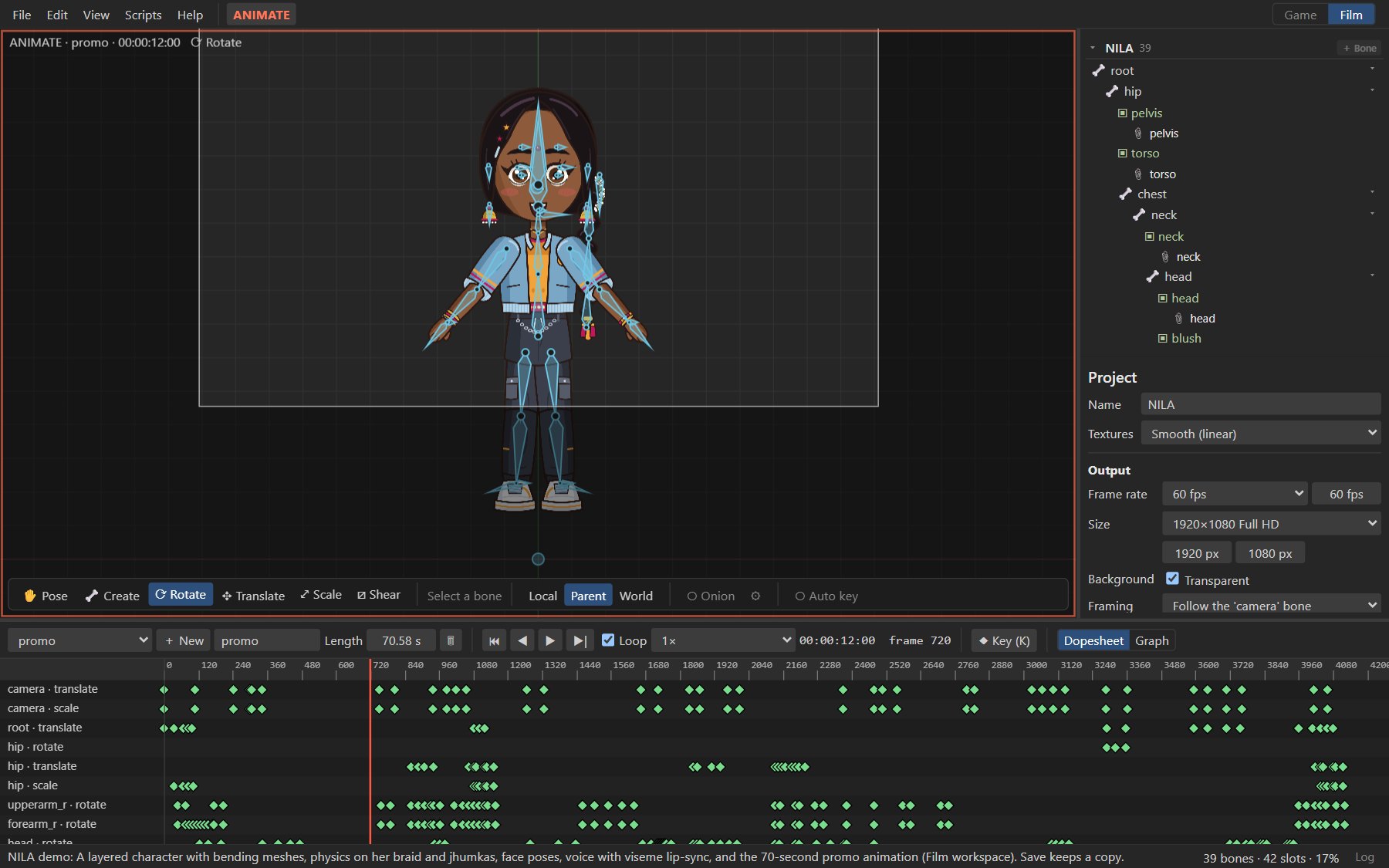
#Workspaces
A workspace decides which tools the editor shows; it never changes the animation itself.
| Game workspace | Film workspace | |
|---|---|---|
| For | Game engines and apps | Film, video, motion graphics |
| Output | Skeleton JSON / .skel + atlas, played by the runtimes | PNG sequences, WebM and MP4 renders (exports stay available) |
| Frame rate of new projects | 30 fps | 24 fps |
| Time display | Frames and seconds | Timecode (HH:MM:SS:FF) and frames |
| Output panel, output frame, render | Hidden | Shown |
| Pose library | Yes | Yes |
| Face controls, audio tracks, lip-sync | Hidden | Shown |
The workspace is saved with the project (.rigby), so a film project opens in the Film workspace.
New projects use the workspace you used last. Skeleton exports opened with File ▸ Open start in
the Game workspace.
Switching is always safe: film settings, poses and face controls live only in the project file and are never written to skeleton exports, so game files are identical whichever workspace was used.
#Output settings
Select nothing (click an empty area of the viewport) to see the project panel. Its Output section sets:
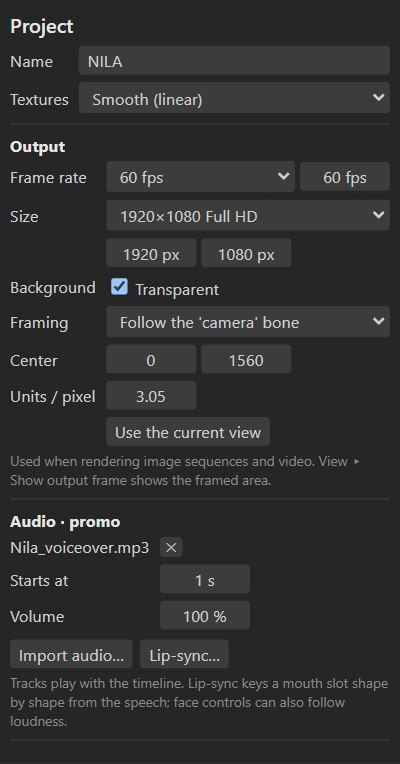
- Frame rate: 12, 15, 23.976, 24, 25, 29.97, 30, 48, 50 or 60 fps, or any rate. It also sets the frame grid of the timeline and keys.
- Size: 4K UHD, QHD, Full HD, HD, 2K Scope (2048×858), 2K Flat (1998×1080), vertical and square presets, or any size.
- Background: transparent, or a color.
- Framing: Fit the animation frames everything visible during the animation with a small
margin; Fixed sets the frame's center and scale (world units per output pixel), or takes them
from the viewport with Use the current view; Follow the 'camera' bone adds a bone named
camera(if there is none) that moves the frame: key its position to pan and its scale to zoom in (scale 2 shows half as much). The output frame overlay follows it.
View ▸ Show output frame outlines the framed area in the viewport.
#Rendering
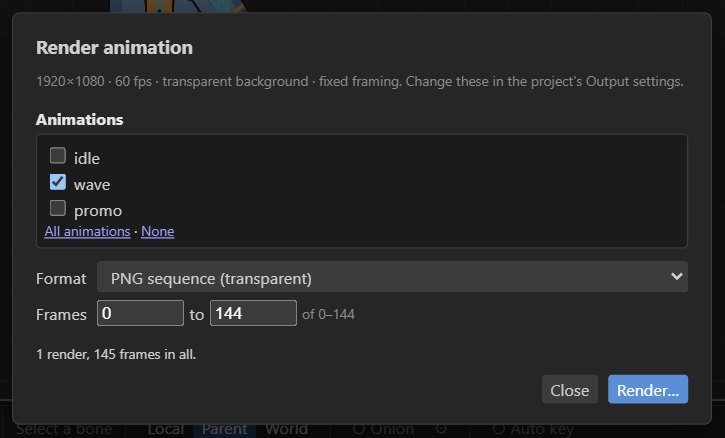
File ▸ Render animation… (PNG, WebM, MP4) renders at the output settings:
| Format | Transparency | Notes |
|---|---|---|
| PNG sequence | Yes | One numbered PNG per frame (name_0000.png, …). |
| WebM, VP9 | Yes | Alpha is stored as the format expects; plays with transparency in browsers. Audio: Opus. |
| MP4, H.264 | No | Uses the background color (black when transparent). 23.976 and 29.97 fps are exact. Audio: AAC (Opus on systems without an AAC encoder). |
Tick several animations (and skins) to batch render them in one go: each combination becomes its own file or sequence. For WebM and MP4, tick Merge into one video to put them back to back in a single file instead, with their audio joined in the same order; each animation starts on a key frame, so players seek to it cleanly. With one animation you can render a frame range.
Rendering is fast: at 1080p an MP4 frame takes about 12 ms and a PNG frame about 20 ms on a desktop PC (PNG frames are encoded on several threads at once).
Renders are deterministic: physics and other time-dependent effects are simulated frame by frame from the start of the animation. Video encoding uses the system's encoders through WebCodecs.
#Poses and face controls
The pose library works in both workspaces; face controls (sliders that blend between poses) are part of the Film workspace. See Poses and face controls.
#Audio and lip-sync
File ▸ Import audio… (or Import audio… in the project panel) adds WAV, MP3, OGG, M4A or FLAC
files as audio tracks of the current animation. Each track has a start time and volume; tracks play
with the timeline and are stored inside the .rigby file.
Lip-sync keys the mouth from the speech in a track: Lip-sync… in the audio section keys mouth shapes sound by sound (with automatic transcription, a typed line or a timing file), and the Lip-sync button of a face control keys a mouth-open control from the loudness. See Lip-sync.
WebM and MP4 renders include the animation's audio, mixed. Every render also writes it as
<name>.wav next to the frames or video, ready for your video editor.
#Coming next
Scene composition: several characters in one shot. Follow the issues for progress.